The Comparables Search feature in the LightBox Research application helps you find comparables for your subject property quickly and easily.
Accessing the Comparables Search Feature
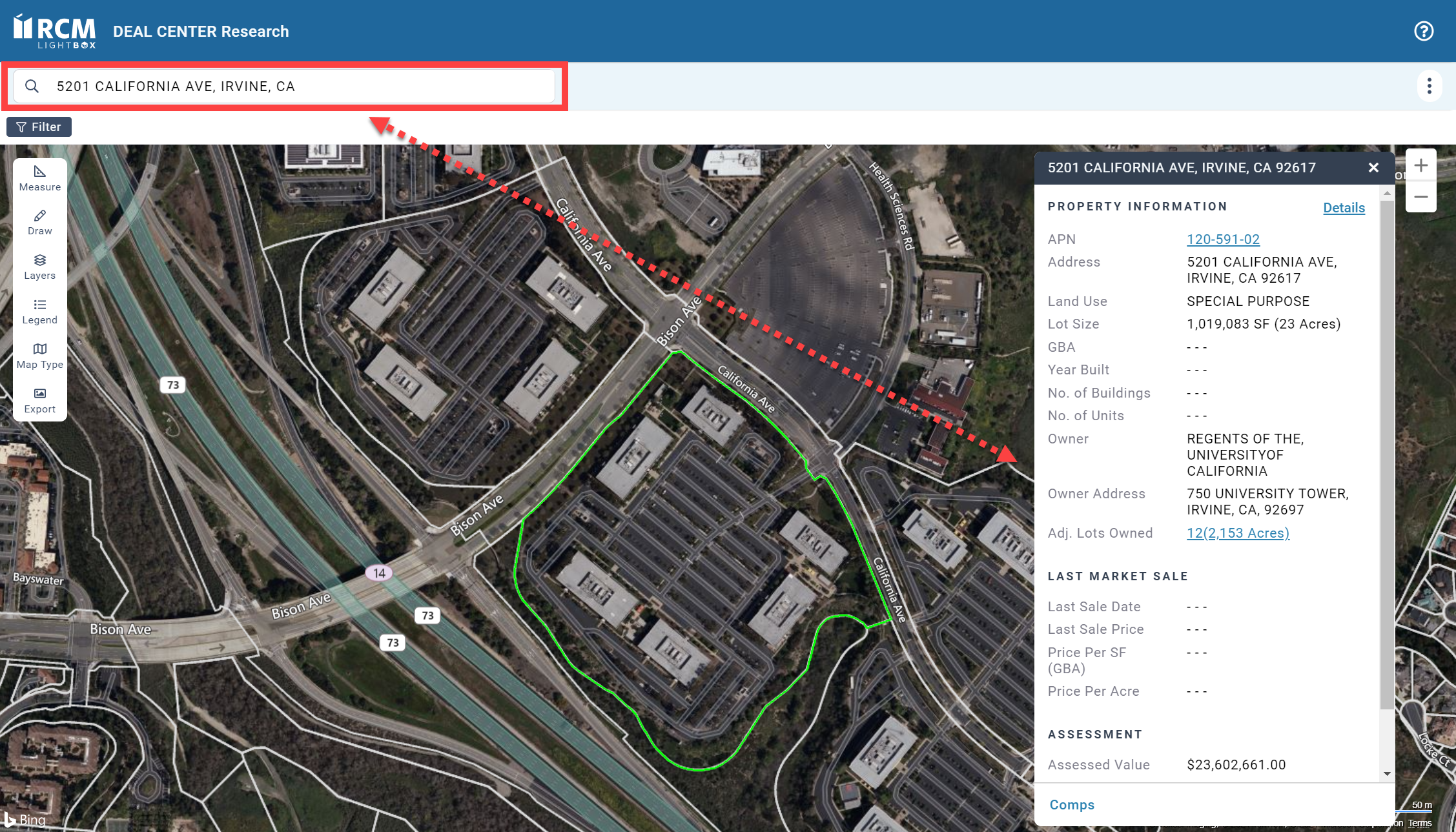
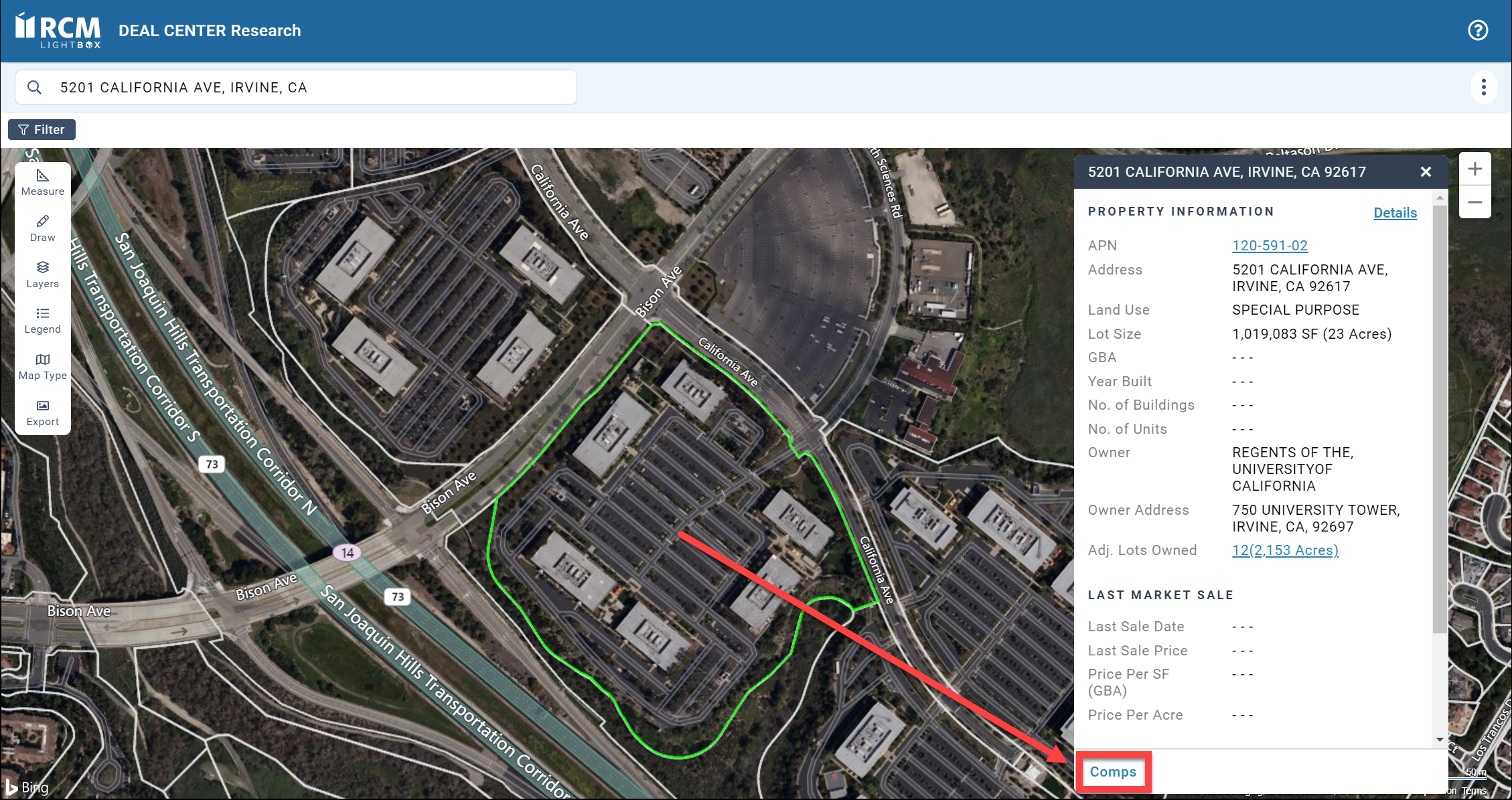
Enter the subject property address in the search bar and press enter on your keyboard. The subject property appears on the map and the Property Information panel opens.
 |
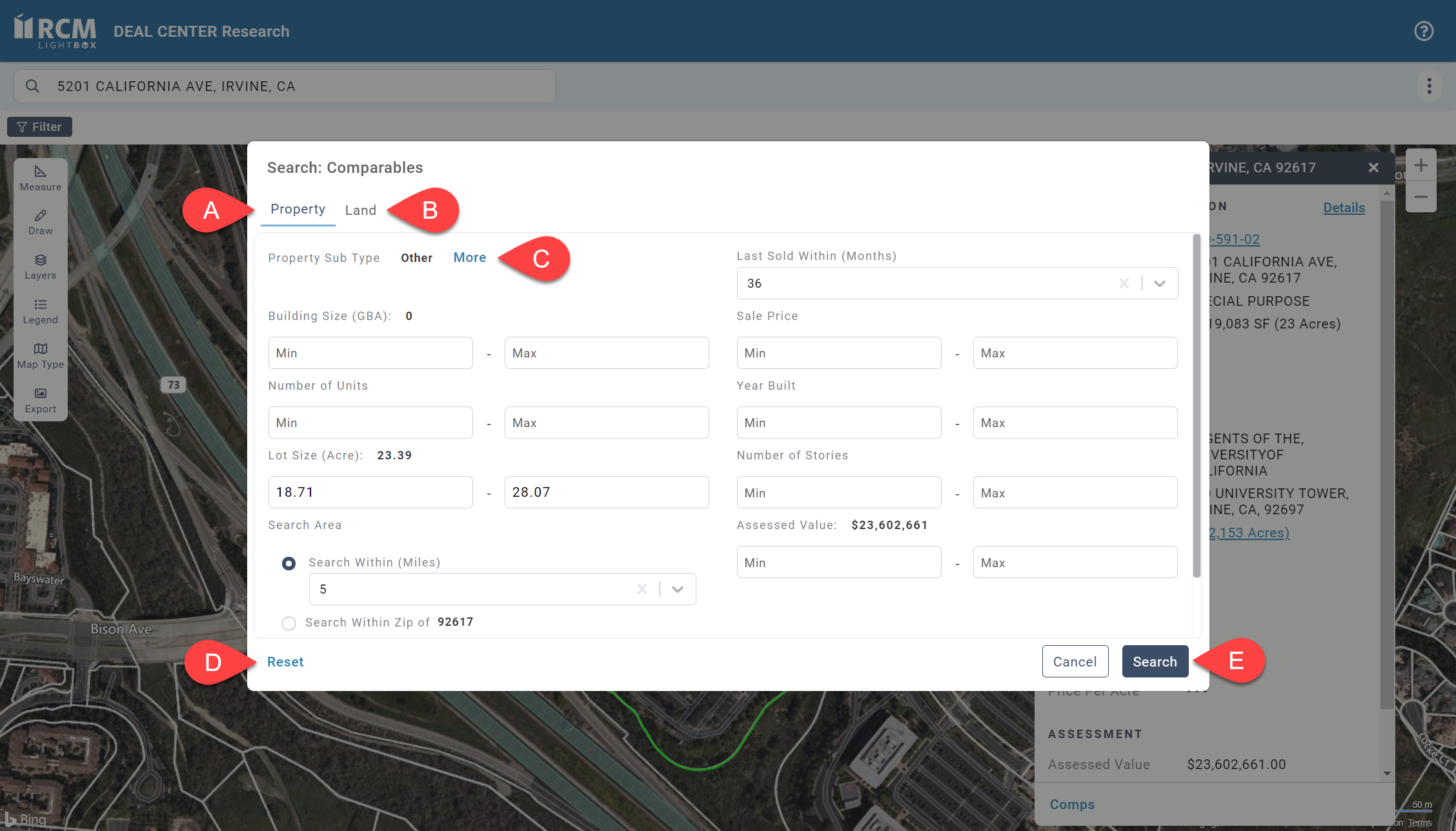
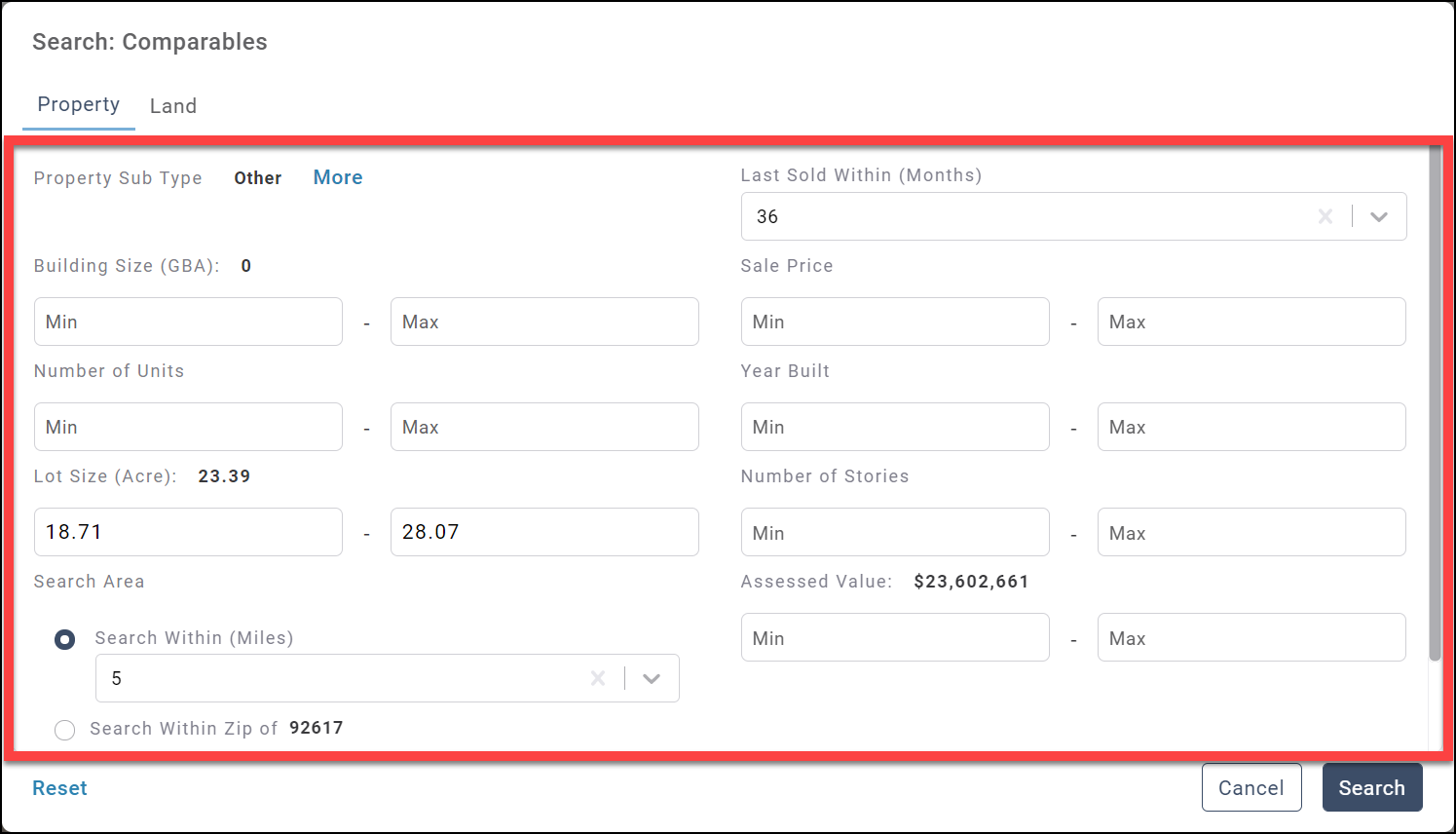
The Property tab is selected by default. This tab contains search criteria for the lot as a whole, as well as the improvements values. Enter or edit minimum and maximum values and make selections from the drop-down menus to refine the search criteria. Note: The entire tab may not be visible; scroll down to view the full selection of Search Area parameters. |
|
 |
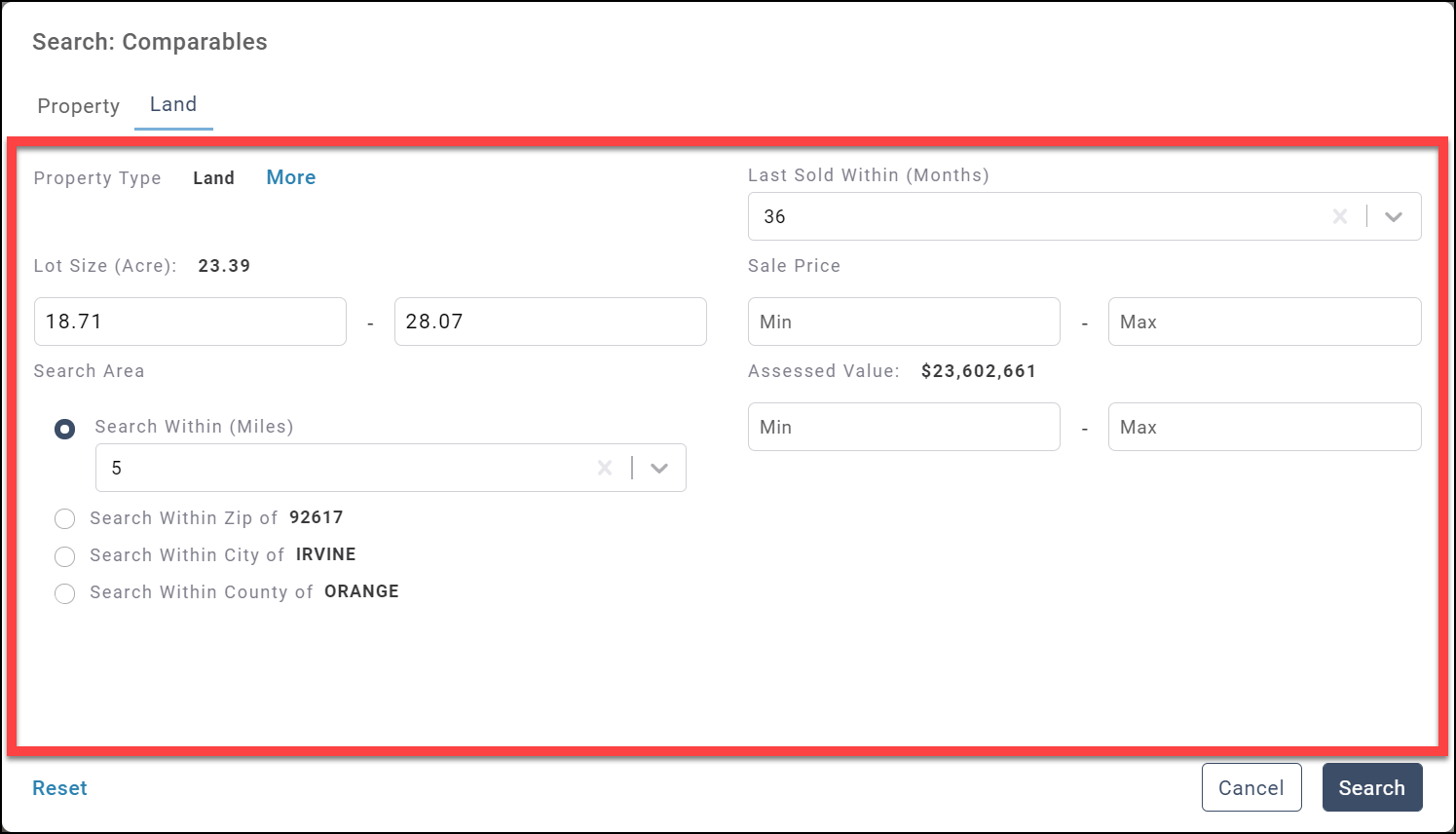
Click the Land tab to view search criteria for the Land Sale Comparables. Enter or edit minimum and maximum values and make selections from the drop-down menus to refine the search criteria.
|
|
 |
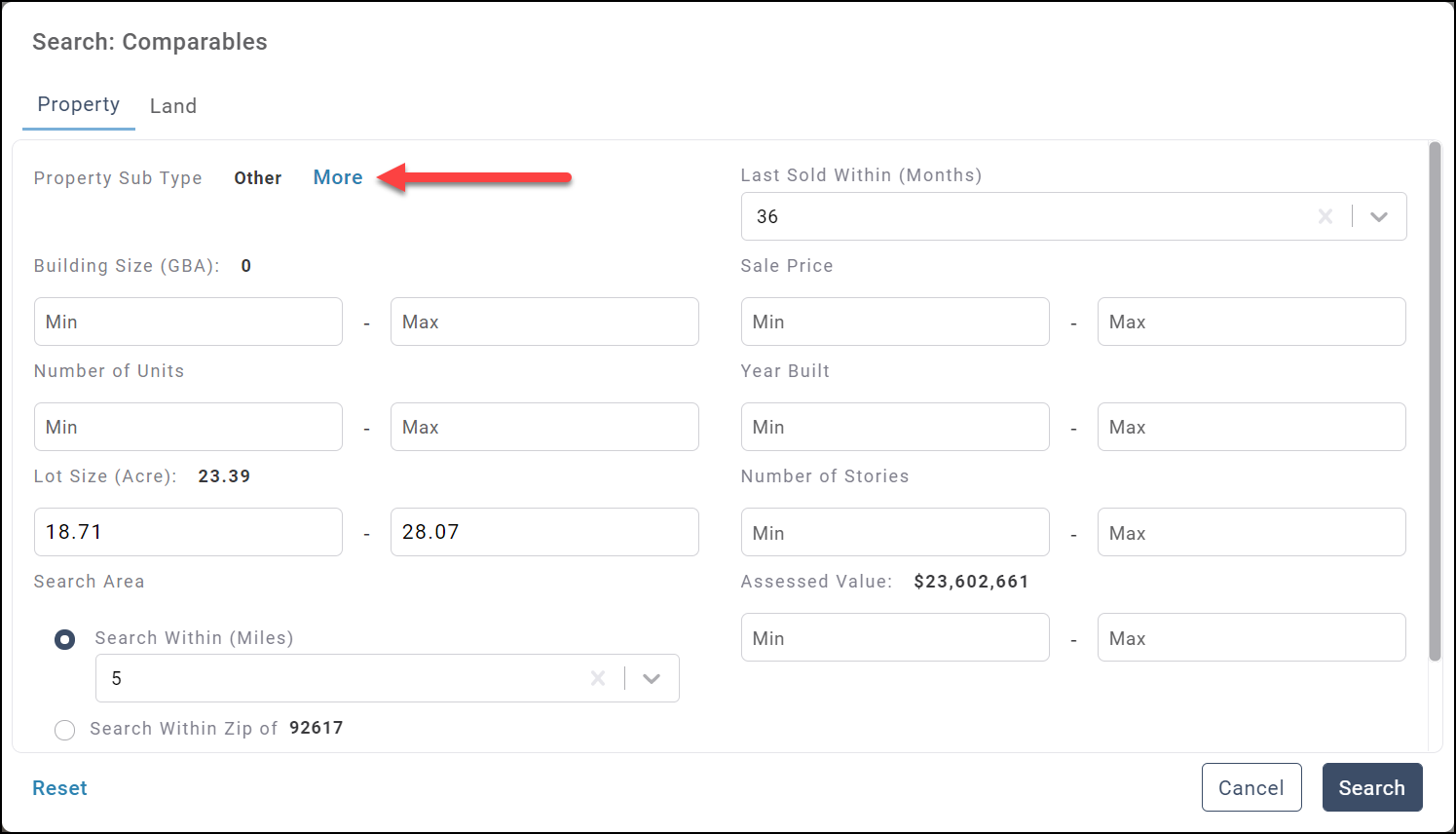
A Property Sub Type will be selected by default. Click More to open a page that allows you to select one or more Property Types and Property Sub Types. |
|
|
|
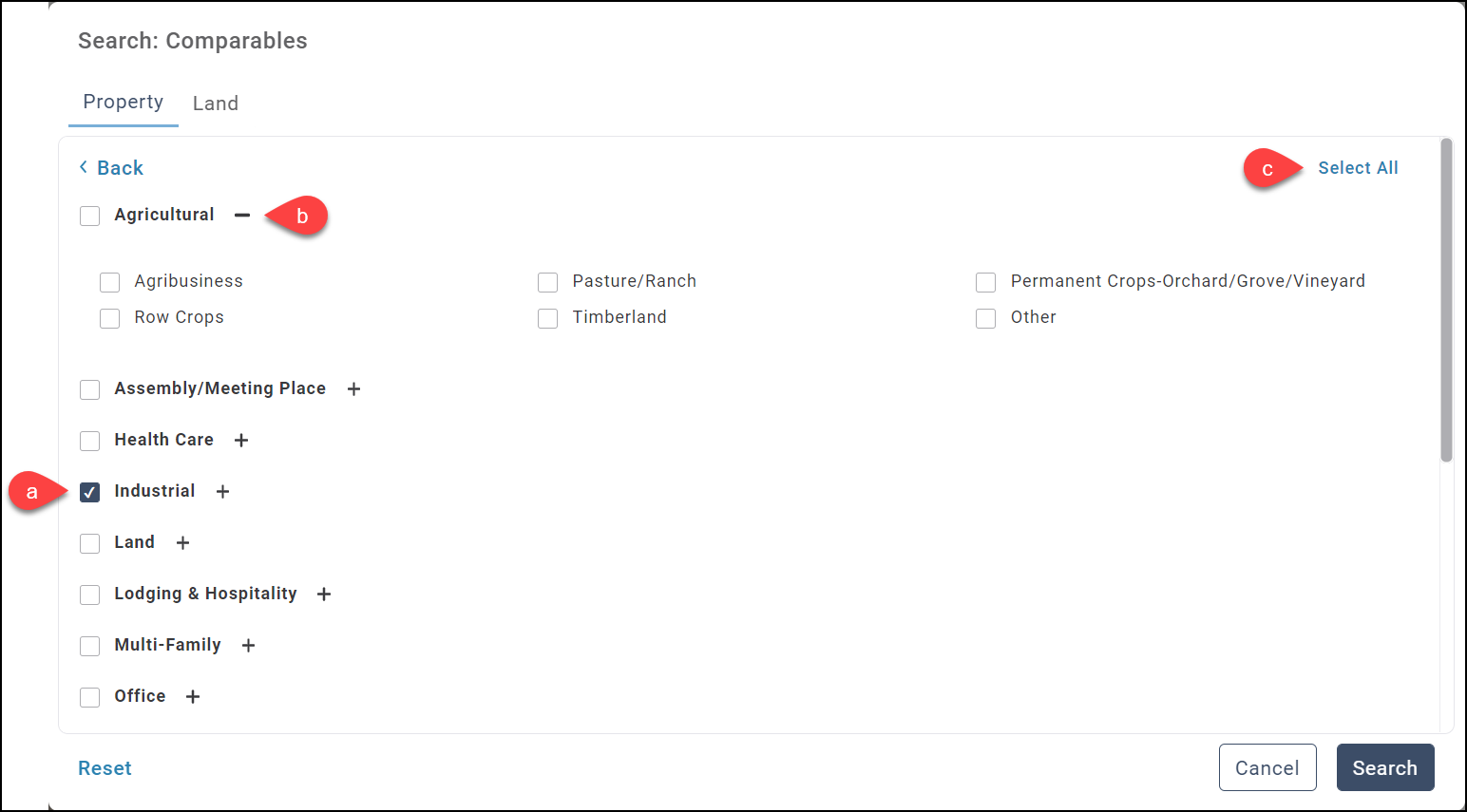
a. Check a Property Type to select it and all of the Property Sub Types b. Click the plus icon next to a Property Type to expose the Property Sub Types it contains. This allows you to select individual Property Sub Types. Click the minus icon to hide the Property Sub Types again. c. Click Select All to select all of the Property Types and Property Sub Types. Click Back in the upper left corner to return to the main Property page or click Search to run the search query. |
|
 |
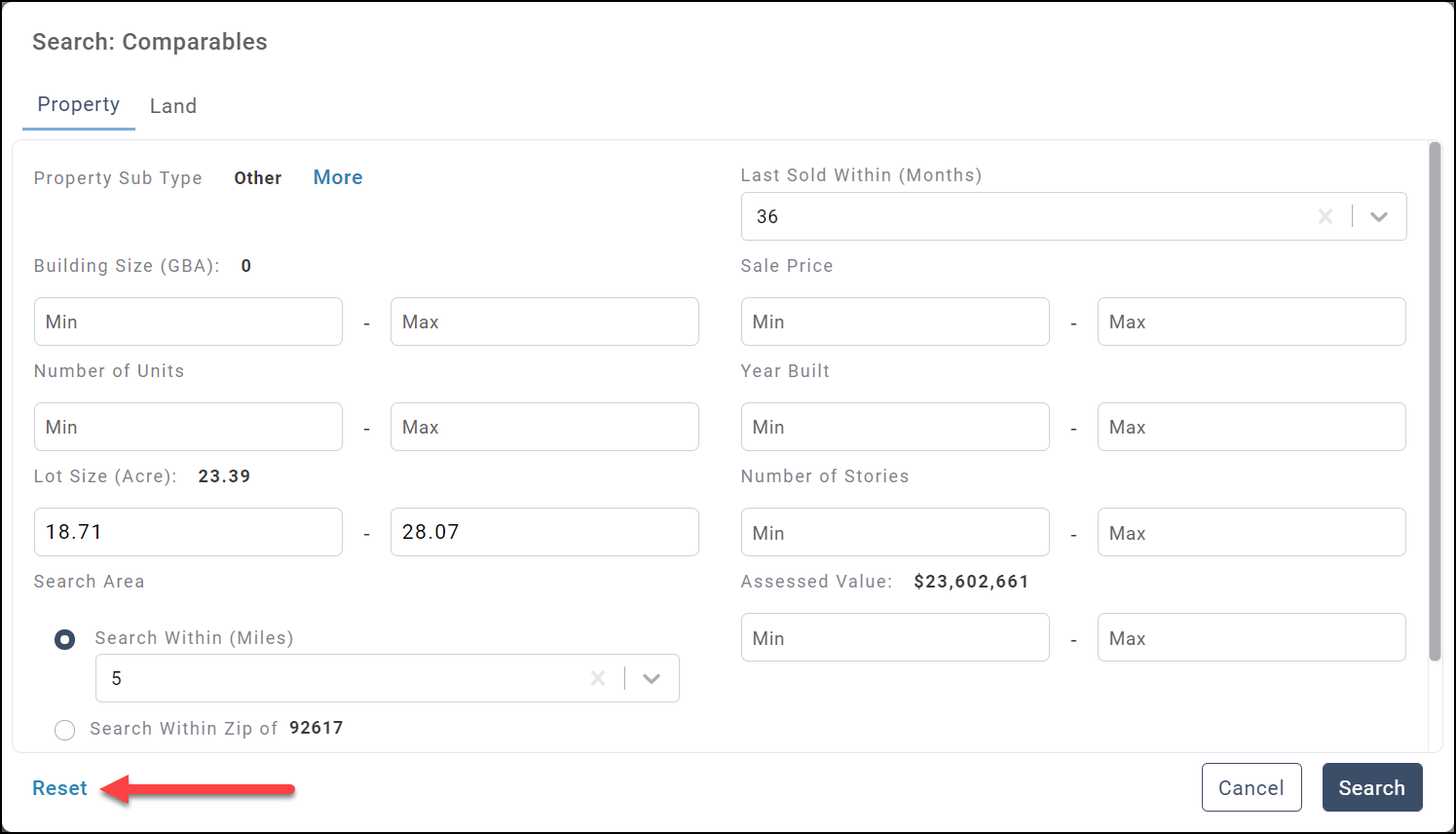
Click Reset to reset all values and selections to their default state. Note: This will reset values on ALL tabs, not just the tab that is currently selected. |
|
 |
Click Search to search for comps that meet the defined criteria. |
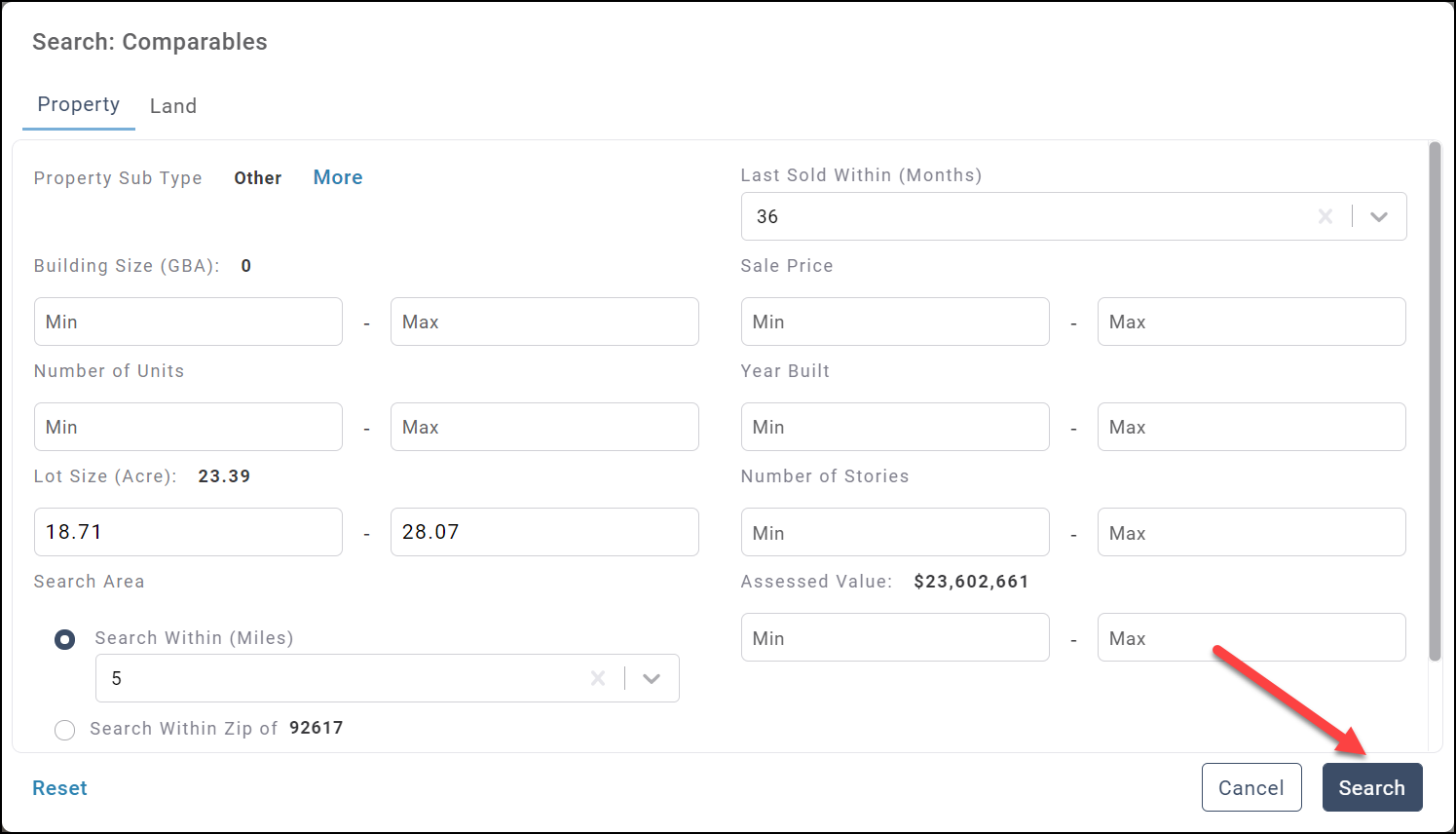
|
The list of comps will load.
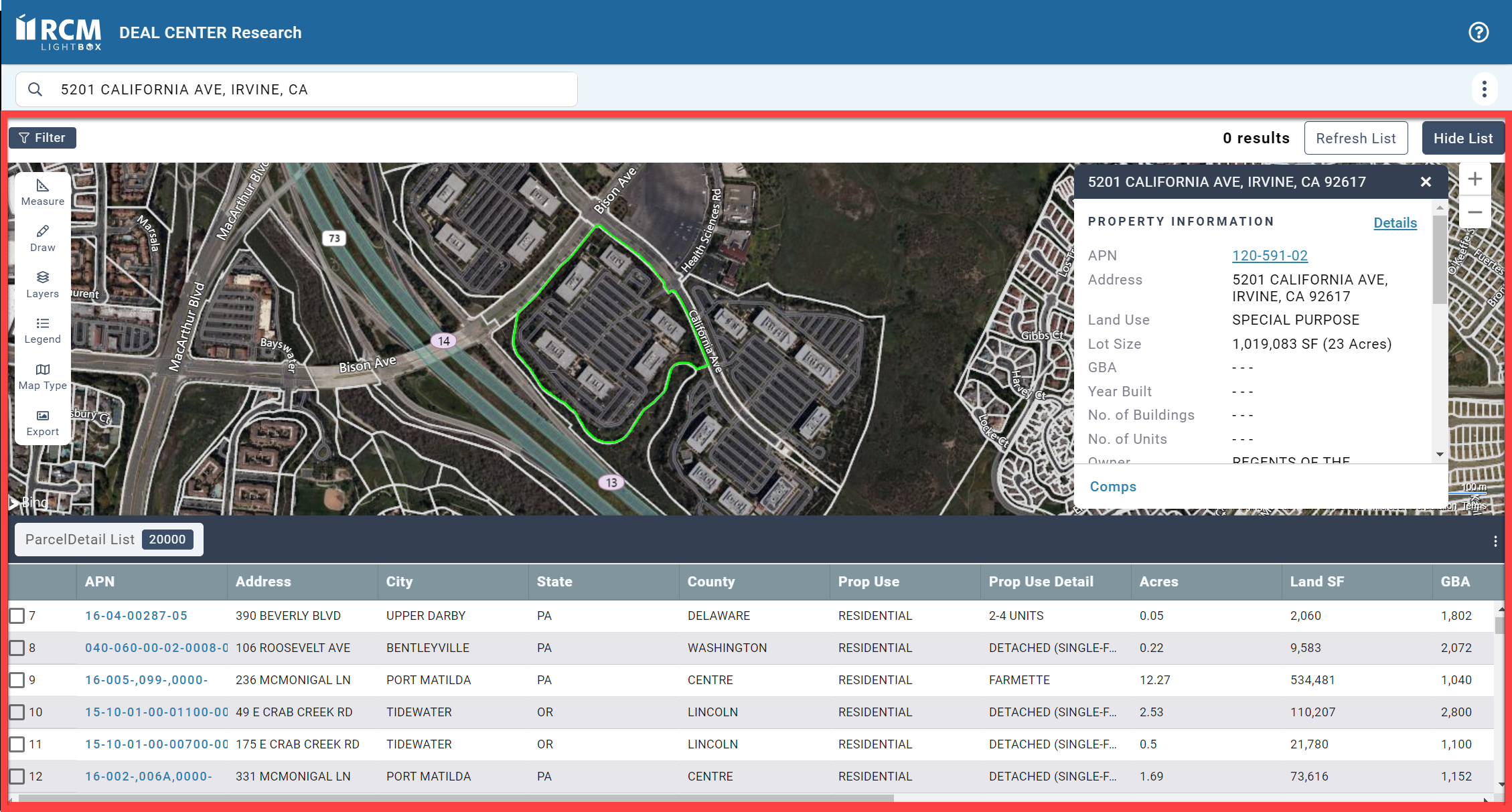
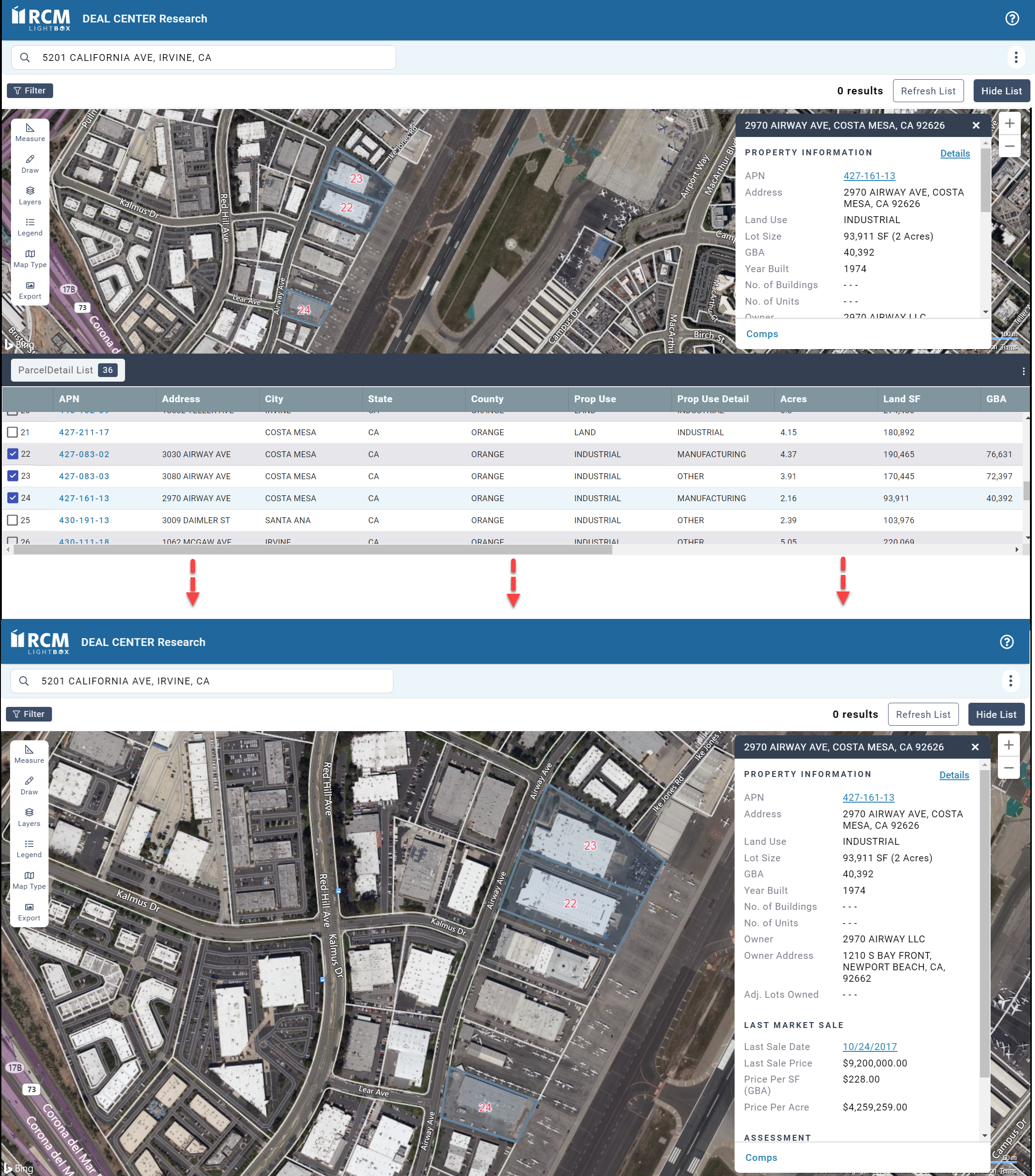
Select one or more comps by clicking the checkboxes to the left of the APN. The comps selected will be highlighted on the map. It may be necessary to zoom out on the map to view all of the comps selected at the same time.
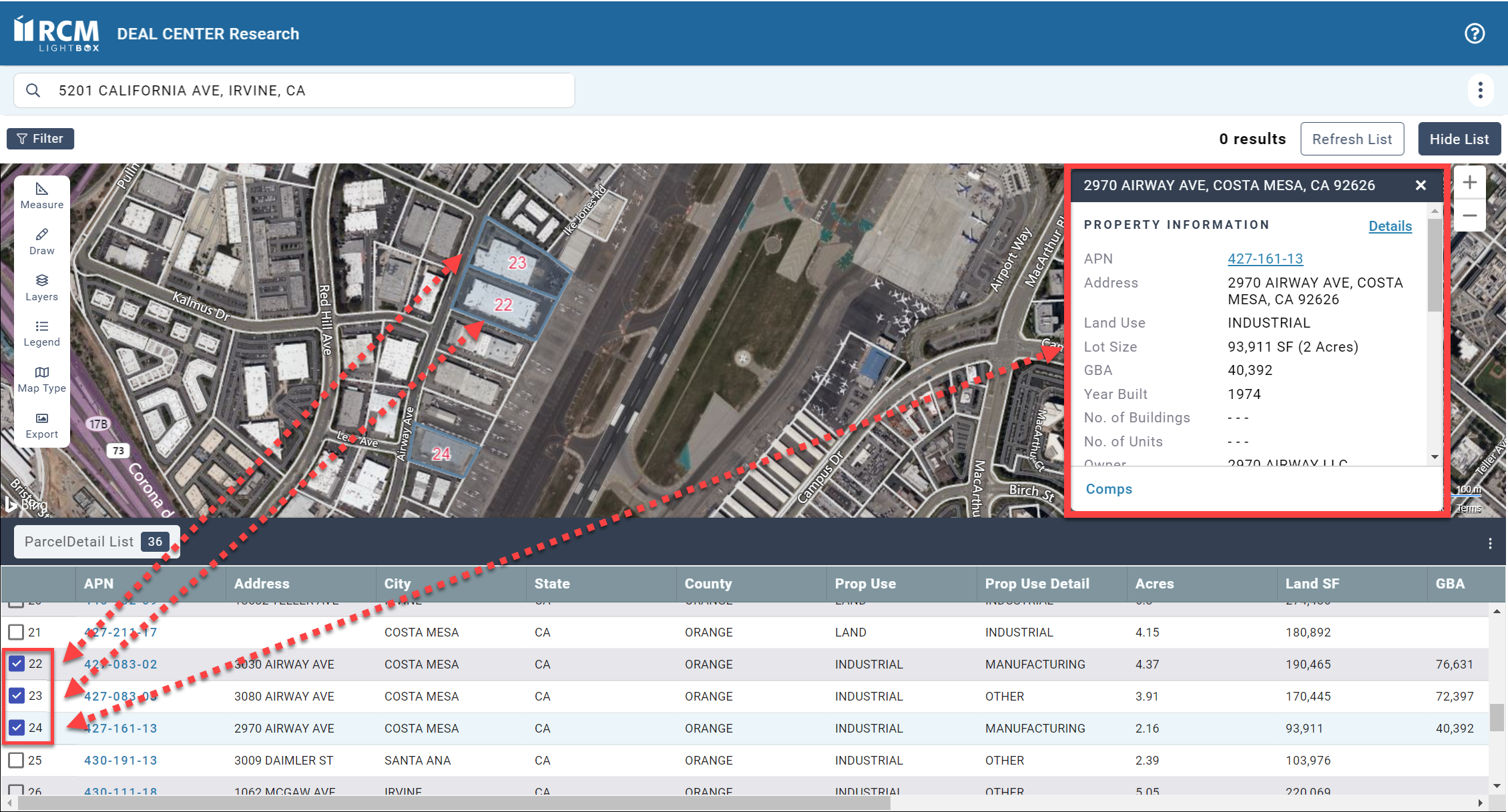
The Property Information panel displays details for the comp you selected. If you selected more than one comp, the Property Information panel will display information for the comp you selected last.
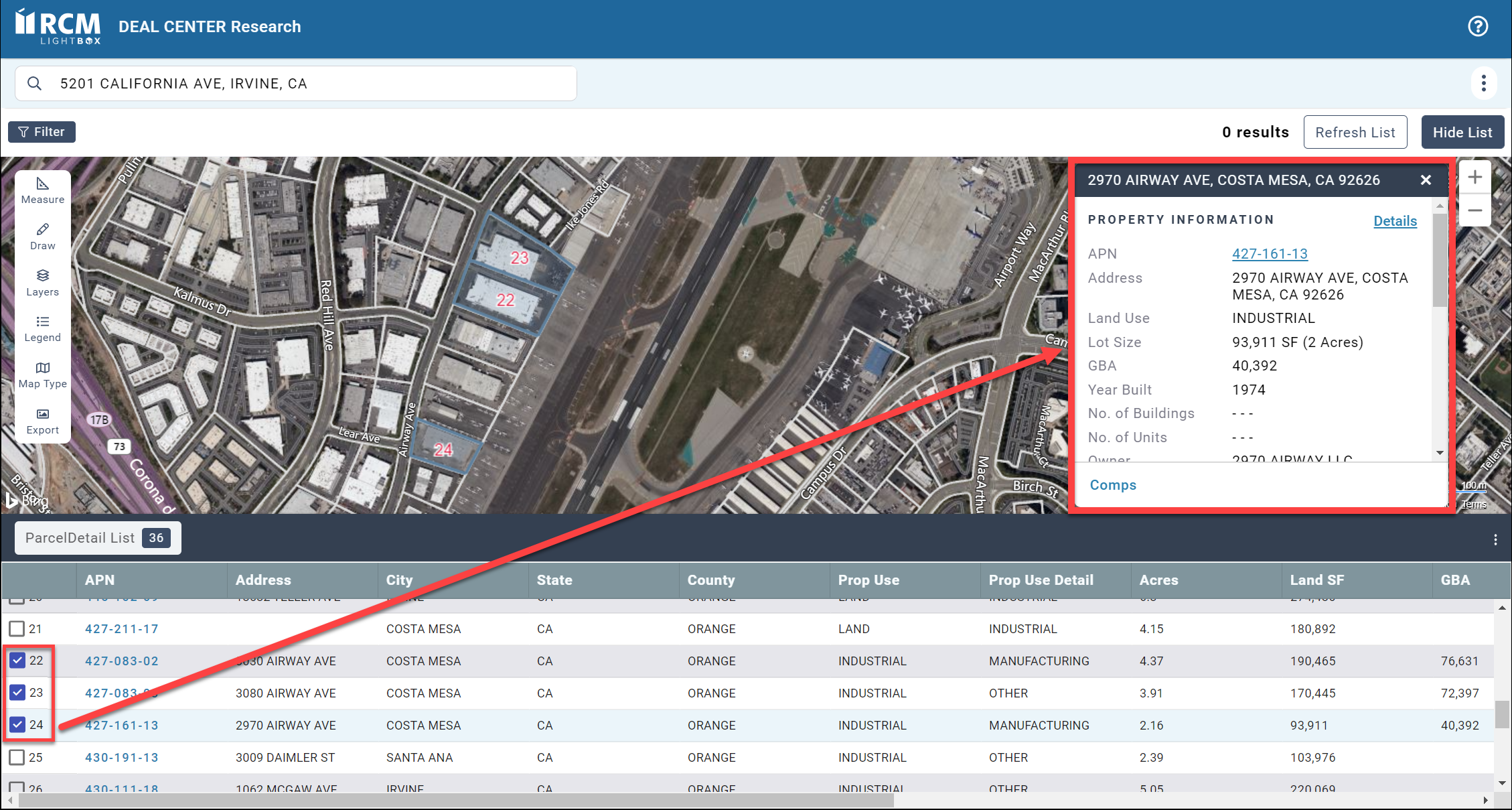
Click Hide List to the list of comps and expand the map pane. Click View List to show the list again.
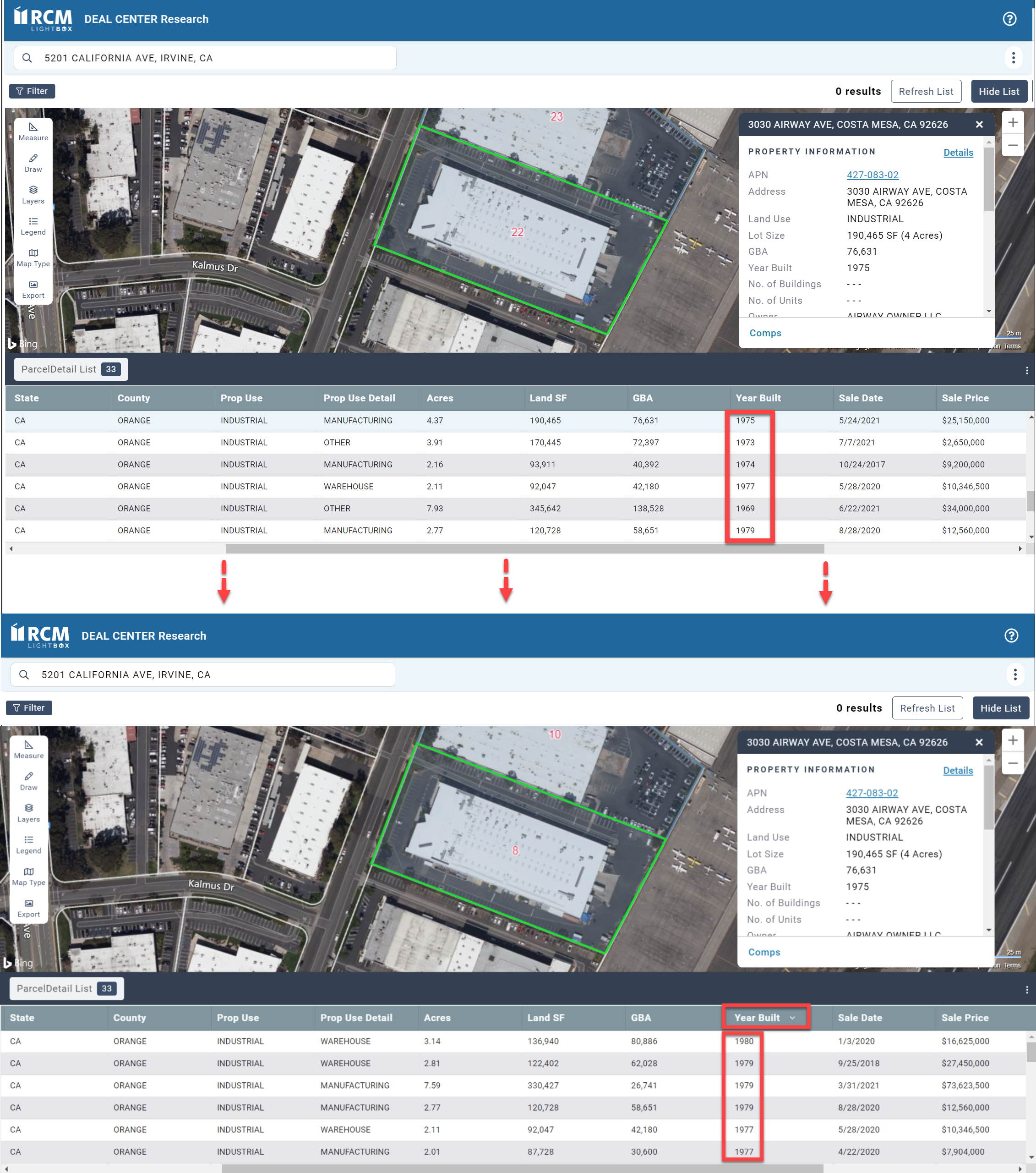
Click a column header to sort the list by that column. Click once to sort in ascending order and a second time to sort in descending order. When the column is sorted in ascending order it will display an upward-facing arrow; when it is sorted in descending order, it will display a downward-facing arrow.
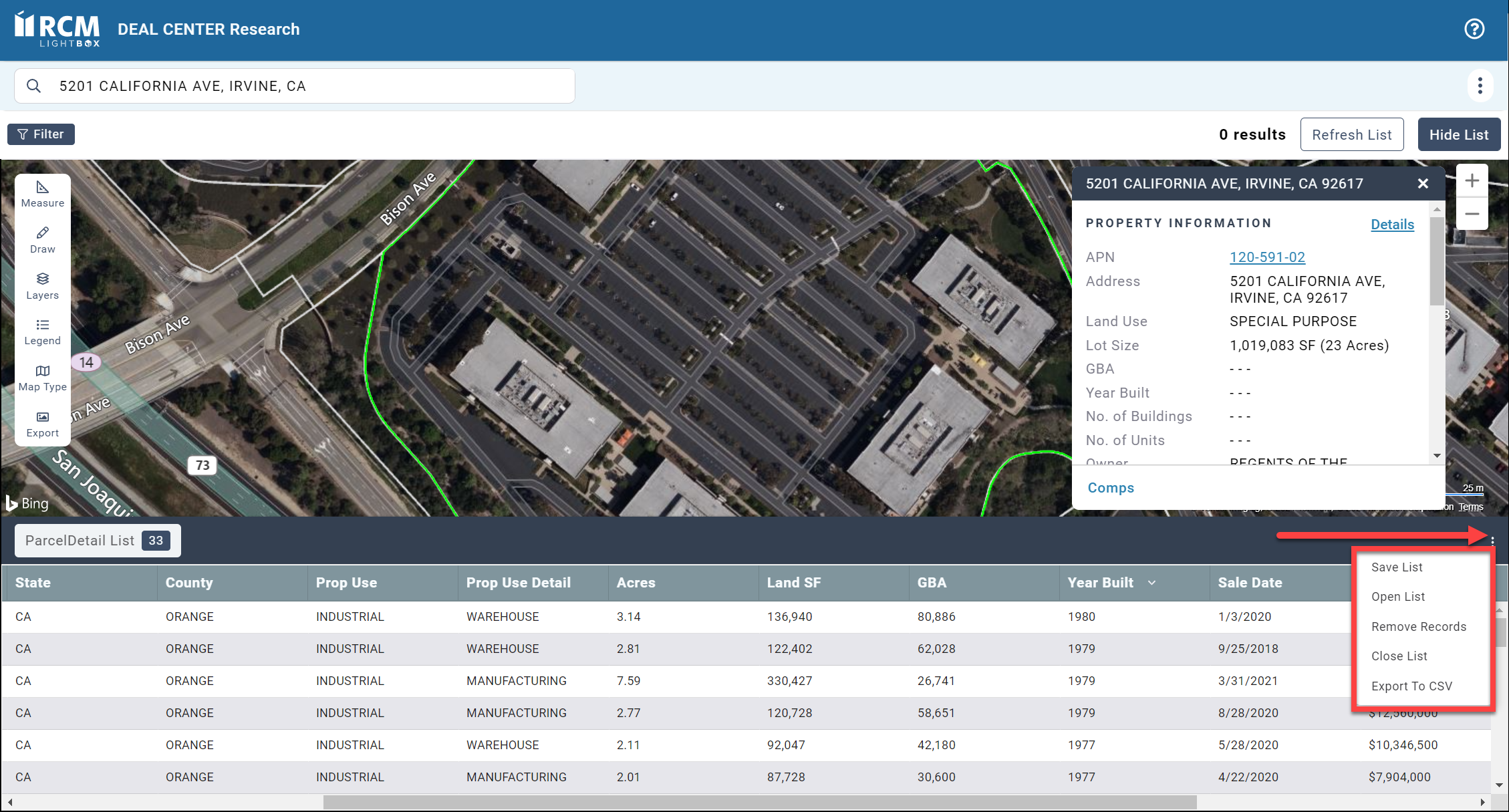
Click the ellipsis next in the upper right corner of the list area to expose a menu containing six commands.
|
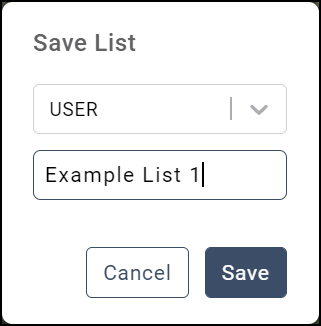
Save List: Click to open the Save List modal. Select a folder from the drop-down menu and then enter a list name. Click Save to save the list. |
|
|
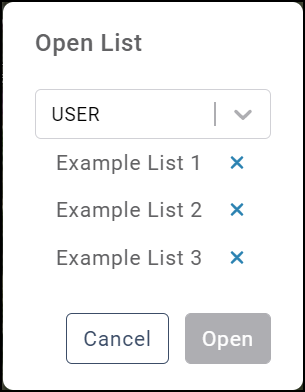
Open List: Click to open the Open List modal. Select a folder from the drop-down menu and then click Open to open the list. Click the X next to a list to delete that last. A pop-up will request confirmation; click Delete to confirm the deletion. |
|
|
Remove Records: Select one or more records you wish to remove from the list by checking the box(es) to the left of the APN, then click Remove Records. A pop-up message will request confirmation; click Yes to confirm. |
 
|
|
Close List: Click to close the list. |

|
|
Export to CSV: Click to download a copy of the list in CSV format. |

|